
Connect TelScreen Support via Remote Connection
If you need remote support from a TelScreen specialist, you will be guided to one of the following options:
-
 https://fastsupport.gotoassist.com/
-
Unattended Connection:
- Download "TelScreenRemoteSupportInstaller.exe"
- Run the installer:
eg. On Windows 10:
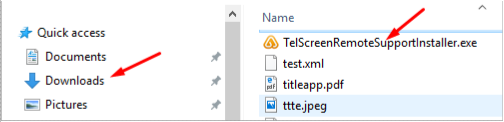
- Open your file browser:

- Find the downloads folder and double click on the file:
- Click "Yes" if you are prompted
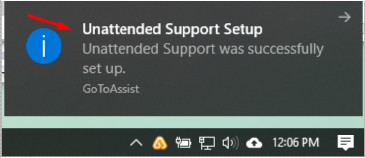
- You may end up with a success notification:
- Store your windows credentials to give the remote support specialist access to your system if a
reboot is necessary:
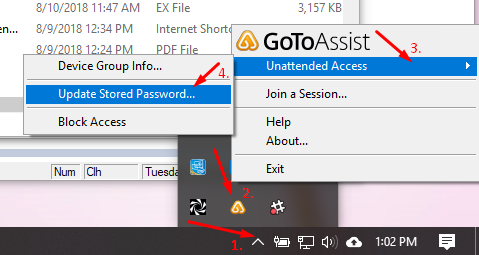
- Expand the taskbar icons in the bottom right hand corner of your screen by clicking the
little symbol at the left of the icons.
- Right-Click the GoToAssist icon
- Click "Unattended Access"
- Click "UpdateStoredPassword..."
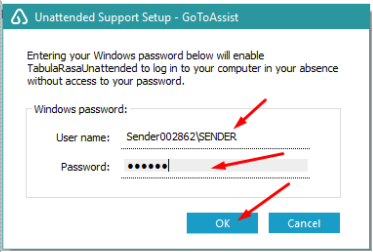
- Make sure the sign-in credentials are for an Administrator User. If it shows up as
SENDER, then you already have administrative access and can just put in the password you
used to log in to windows. Then click "OK"
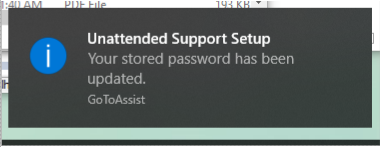
- You might see a success message:
- You are now ready for a TelScreen specialist to remote into your system.